

A familiar layout and wording
If you knew where something was in Publisher, you’ll know where to look here.
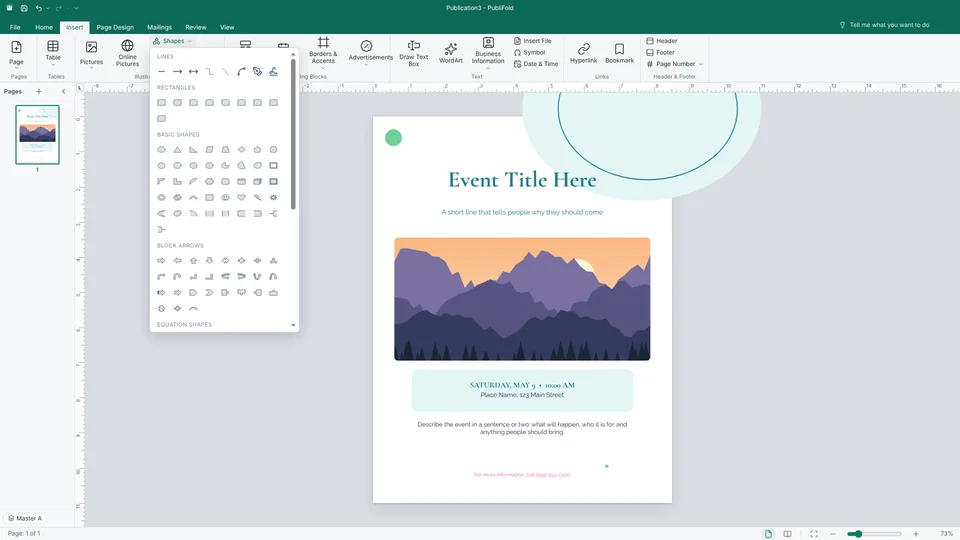
- Ribbon tabs arranged like Publisher’s: File, Home, Insert, Page Design, Mailings, Review and View
- Text Box Tools, Drawing Tools, Picture Tools, Table Tools and Master Page tabs that appear when you need them
- The Quick Access Toolbar, with Undo and Redo lists
- The keyboard shortcuts Publisher users know, and KeyTips when you press Alt
- Tell me what you want to do, which finds any command by name (Alt+Q)
- The Mini Toolbar when you select or right-click text
- Live Preview: point to a font, color, style or scheme to see it on the page before you choose it
- Customize the ribbon: turn tabs and groups on or off, and make tabs and groups of your own
- Pin the publications you use most to the top of File > Open
Publications and templates
File > New opens each category with Blank Sizes first, then its templates.
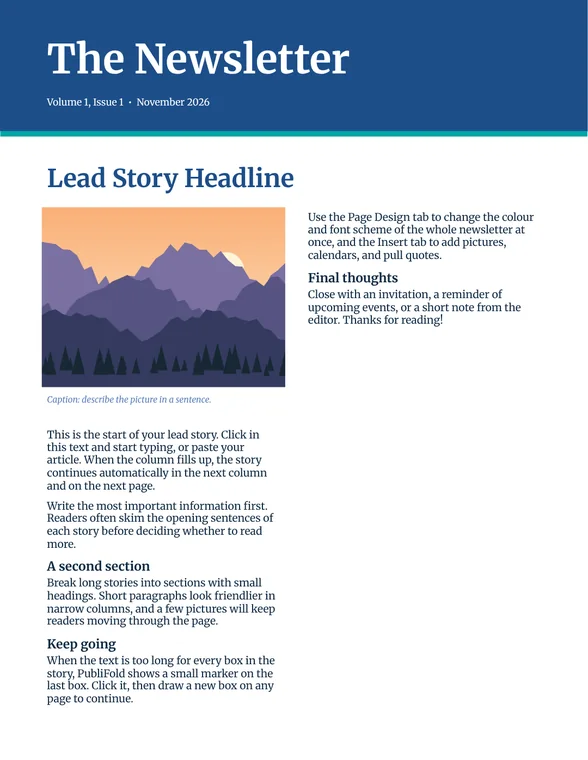
- Flyers, bulletins and programs, greeting cards, brochures, newsletters, posters, signs, certificates, menus, postcards, business cards, letterhead, envelopes, labels, banners, calendars, invitations, gift certificates, resumes and bookmarks
- Greeting cards and invitations as quarter-sheet or half-sheet cards, side fold or top fold, portrait or landscape, and 5 × 7
- Six design sets (Arbor, Banner, Corner, Arc, Stripe and Frame), each as a matching flyer, tri-fold brochure, newsletter, business card, letterhead, envelope, postcard, bulletin and invitation
- Avery address, return address, shipping, file folder, name badge and round labels, and Avery business cards and postcards, listed by product number
- 75 color schemes and 40 font schemes
- About 70 ready-made building blocks: headings, pull quotes, sidebars, stories, bars, boxes, frames, advertisements, attention getters and coupons
- Business Information sets that fill in business cards, letterhead and other publications
- Save any publication as a template of your own
Text
- Text boxes that flow from one to the next, with “Continued on page” and “Continued from page” notices
- Columns, and text wrap: Square, Tight, Through, Top and Bottom, and Edit Wrap Points
- Line and paragraph breaks: widow and orphan control, keep with next, keep lines together
- Styles, and Import Styles from another publication or a Word document
- Drop caps, hyphenation, AutoCorrect, vertical text and text that shrinks or grows to fit its box
- Ruler indents and tab stops
- Text effects: shadow, outline, glow, emboss and engrave, and OpenType number styles, ligatures and stylistic sets
- WordArt, with Office’s arches, circles and warps
- Spelling, Find and Replace, the Thesaurus (Shift+F7) and Translate, which works offline once a language is downloaded
- Insert the text of a Word document or a text file
Pictures
- Picture placeholders: click the icon, choose a picture, and it fills the frame
- Crop, Picture Styles, Recolor, Set Transparent Color, Compress Pictures, Swap and captions
- Picture and shape effects: shadow, reflection, glow, soft edges, bevel and 3-D rotation
- Online Pictures from free-to-use libraries (Openverse, NASA, Wikimedia Commons, The Met and the Art Institute of Chicago) with no sign-up, showing each picture’s license and adding a credit line when the license asks for one
- Pixabay and Pexels with your own free key, Brave Search with your own Brave key, and Bing Images or Google Images in a PubliFold window
- The Graphics Manager, with each picture’s license, and pictures linked to files that update when the file changes
- Save any selection as a picture
Shapes, tables and objects
- Office’s Shapes gallery: lines, rectangles, basic shapes, block arrows, equation shapes, flowchart, stars and banners, and callouts, with yellow adjustment handles
- Freeform, Scribble and Curve, with Edit Points
- Tables, including tables from Excel workbooks and CSV files with their formatting
- Pattern and texture fills, double and triple lines, and 3-D effects
- Align, distribute, group, rotate and flip, and the Selection Pane (Alt+F10) to show, hide, rename and reorder objects
- Format Painter, and Ctrl+drag to copy
- Alt Text and Check Accessibility
Pages
- Master pages, including two-page masters for left-hand and right-hand pages
- Page numbers as 1, i, I, a or A, and headers and footers
- Guides, and two-page spreads
- Page backgrounds and BorderArt
- Add, delete and move pages in the Pages pane
Mailings
- Mail Merge from a typed list, a CSV or text file, or an Excel workbook
- Address Block, Greeting Line, and text and picture merge fields
- Edit Recipient List, with Find duplicates and Filter, and Preview Results
- Catalog Merge: a repeating area with fields and pictures for each record
- Finish & Merge to the printer, a new publication, a PDF or e-mail; E-mail Merge makes a ready-to-send draft for each person for Outlook, Thunderbird or Windows Mail
- File > Share > Email sends a page as the message, or the publication or a PDF of it as an attachment
Printing and PDF
- Booklets, with the pages put in printing order
- Folded cards, several cards or labels to a sheet with crop marks, and tiled posters and banners
- Two-sided printing by hand
- PDF files, tagged for accessibility, with working links and bookmarks
- Pictures as PNG, JPEG or TIFF
- Commercial Print Settings: process and spot colors, CMYK values, printer’s marks (crop and registration marks, color bars, job information), bleed, CMYK PDFs and TIFFs, and separation proofs
Fonts
- Fonts embedded in Publisher files come in with them, and Manage Embedded Fonts lets you embed your own
- A notice when a font isn’t on the computer, and Font Substitution to choose what’s shown in its place
- Built-in look-alikes for common Office fonts, including same-width fonts for Monotype Corsiva, Century Gothic, Bookman Old Style, Century Schoolbook, Book Antiqua and Arial Narrow
- A set of open-license fonts for headings and body text, built in
Publisher files
- Opens Publisher (.pub) files, including turned shapes and text, oval pictures, booklets and folded cards
- Saves them as PubliFold publications (.publifold), leaving the original .pub file as it was
Moving from Publisher explains what to expect.
Help
- Press F1 for Help about what you’re doing: 40 how-to articles, built in so they work offline
- Search Help from the Help pane, or from Tell me